Handbook · For members
Member guide
Everything you can do on the platform, in the order you are likely to need it.
1 · Joining
Membership is verified rather than open. The application takes a few minutes; approval depends on the association office reviewing it.
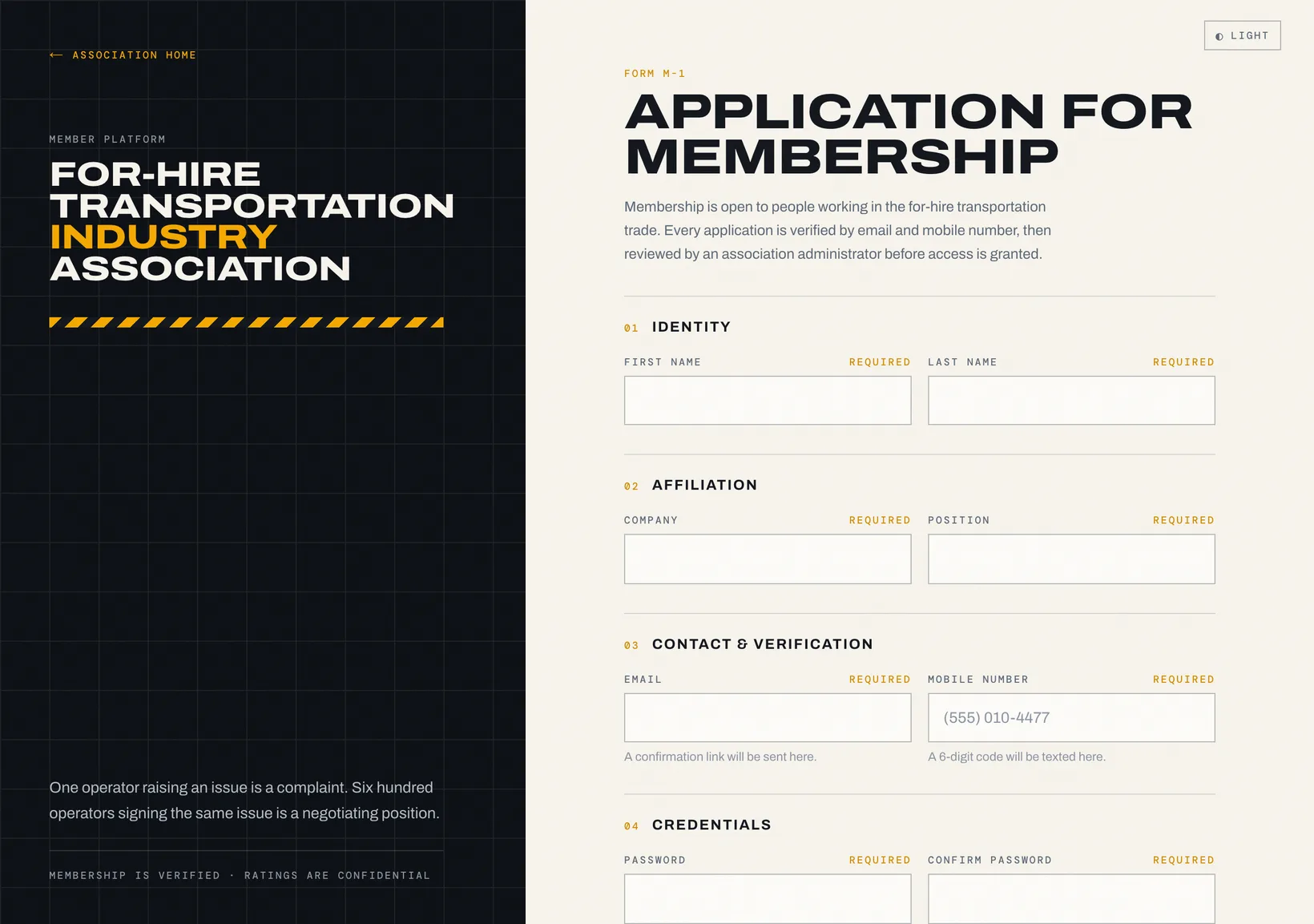
Complete the application
Your name, the company you work for, your position, an email address, a mobile number and a password. All are required — the association needs to know who is behind every signature.Confirm your email
A link arrives in your inbox. Opening it clears the first check.Confirm your mobile
A six-digit code is texted to you. Enter it on the verification screen. You can request a new code if it does not arrive.Wait for review
Once both checks clear, your application moves to the association office. You will receive an email when a decision is made.
2 · Your dashboard
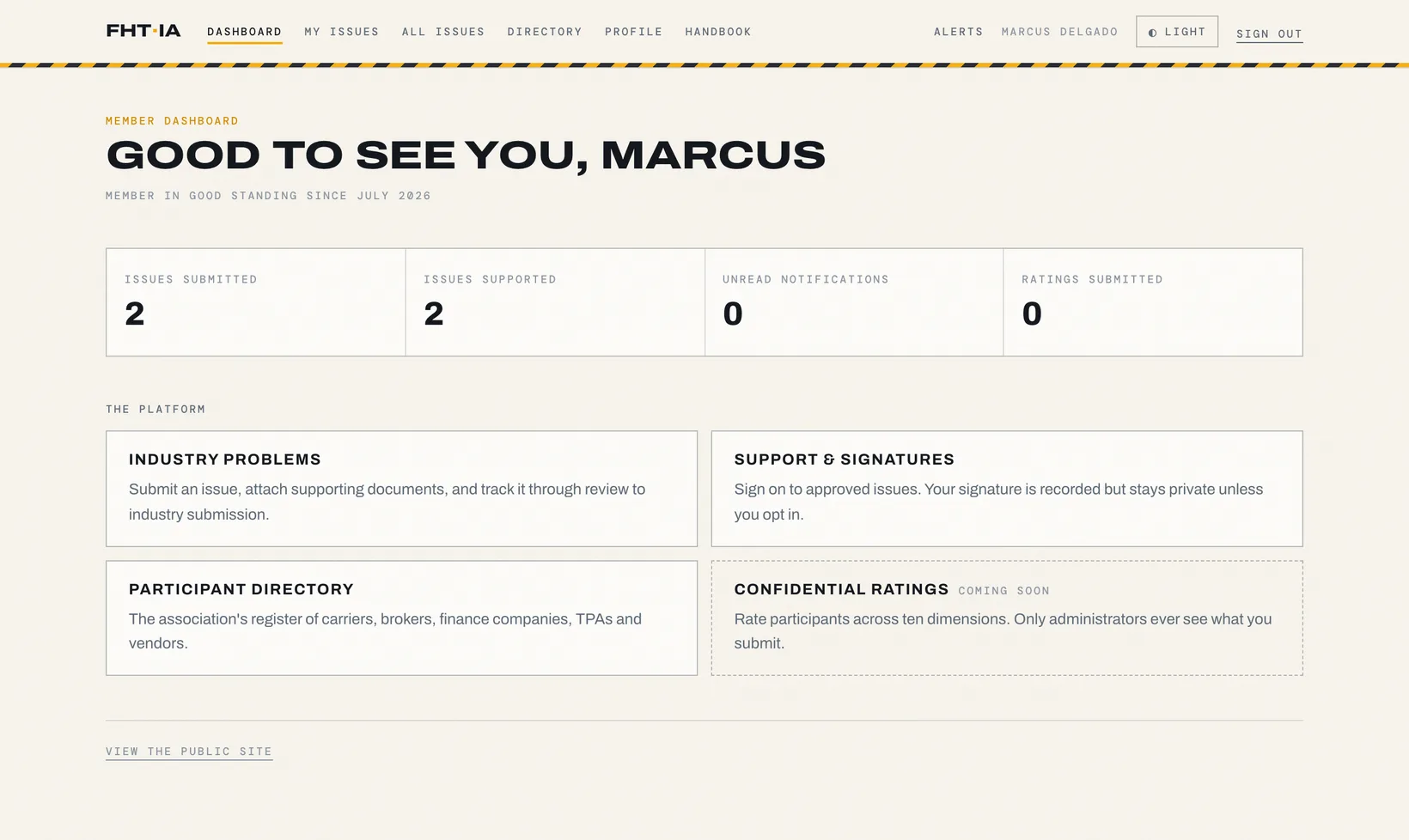
After approval, signing in brings you to your dashboard: a count of what you have submitted and supported, unread notifications, and the way in to each part of the platform.
3 · Raising an issue
An issue is a documented problem plus a proposed remedy. The more specific it is, the more useful it is to the association when it puts the case to a carrier or a regulator.
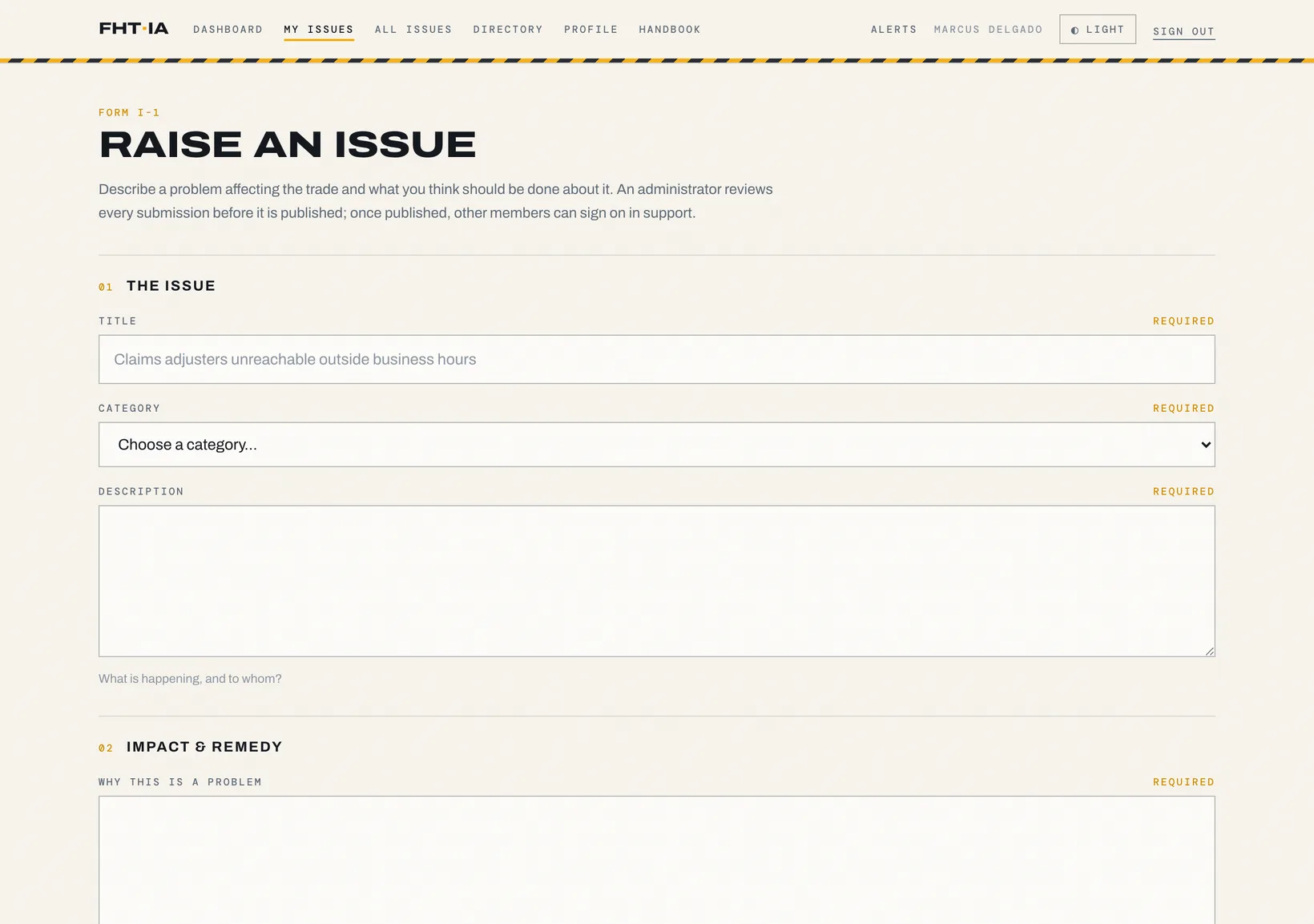
- Title
- One line that says what the problem is. This is what other members see in the list.
- Category
- Insurance, claims, regulations, technology and so on. Used for filtering.
- Description
- What is happening, and to whom. Specifics beat adjectives.
- Why this is a problem
- The cost — to operators, to drivers, to the public. Numbers help.
- Proposed solution
- What should change, and who needs to act. An issue without a remedy is a complaint.
- Supporting documents
- Correspondence, photographs, surveys, statements. Up to 25 MB per file.
- Tags
- Comma separated keywords, up to eight.
Save as draft keeps it private and editable. Submit for review sends it to the association office; from that point the office controls its progress.
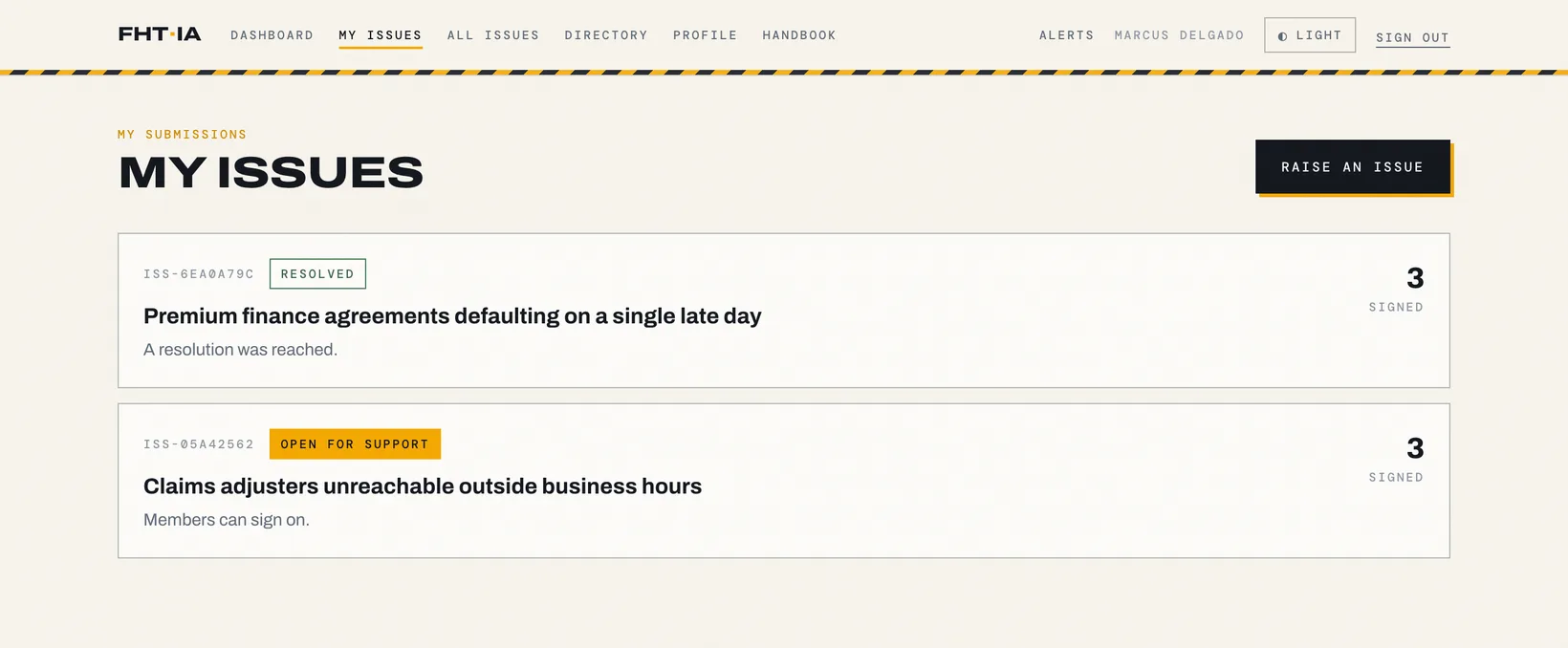
Your submissions and their current status are listed under My issues.
4 · What the statuses mean
- Draft
- Only you can see it. Still yours to edit or delete.
- Submitted
- Sent to the association office and waiting to be picked up.
- Under review
- An administrator is assessing it.
- Approved
- Accepted and published on the public website.
- Open for support
- Published and accepting signatures from members.
- Submitted to industry
- Put formally to the relevant carriers, regulators or bodies.
- Resolved
- A resolution was reached.
- Closed
- No longer active.
5 · Signing in support
Signing an issue is the point of the platform. It is what converts one operator’s problem into a position the association can carry.
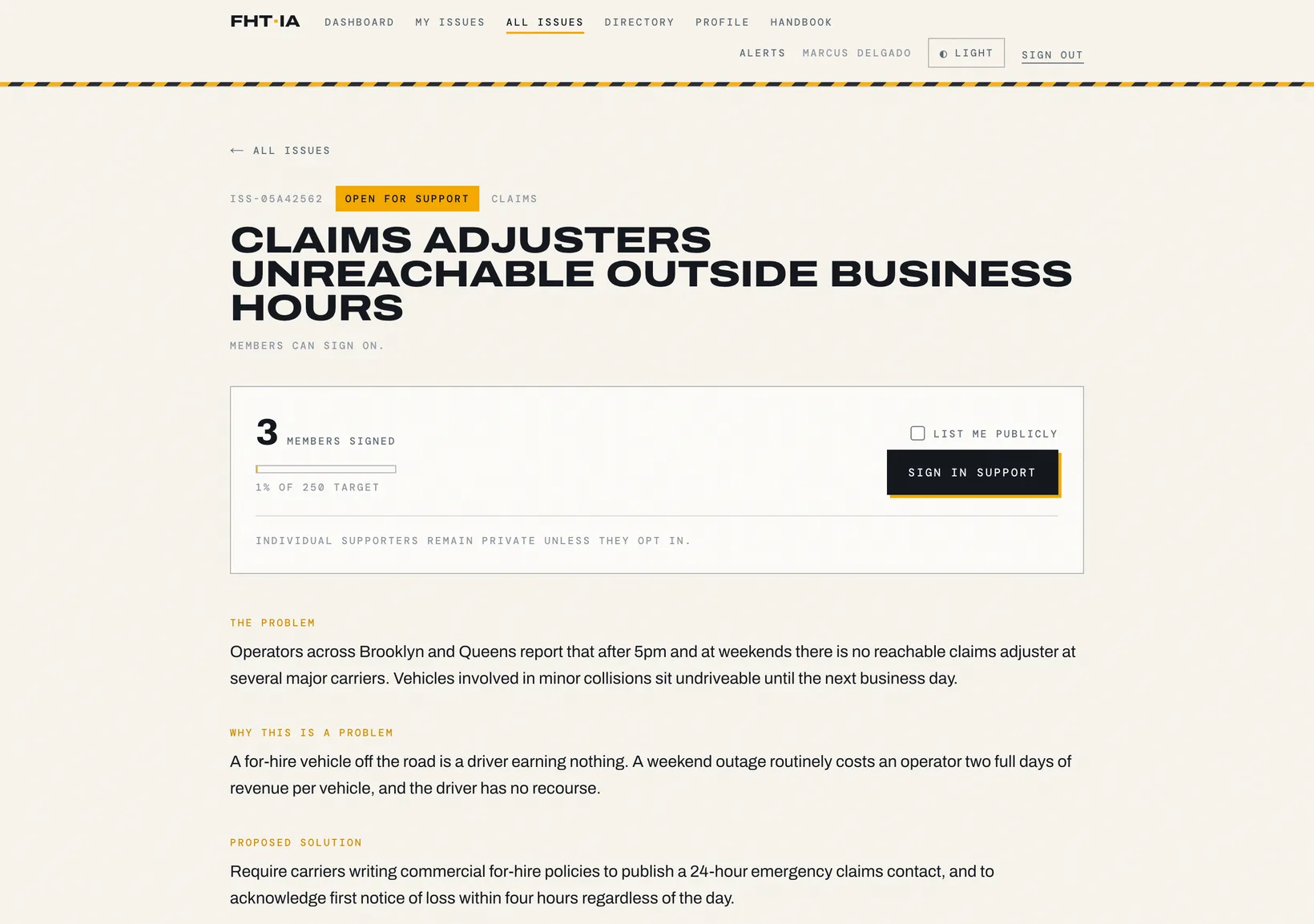
Open an issue that is approved or open for support
Decide whether to be listed publicly
By default your signature is private: it counts towards the total, but your name is not shown. Tick the box only if you are content to be named publicly.Sign in support
One signature per member. You can withdraw it later, which removes it from the total.
Each issue also carries a discussion thread visible only to members. Use it to add what you are seeing in your own operation — that detail is often what makes a case persuasive.
6 · The participant register
The register is the association’s maintained list of the companies the trade deals with: carriers, brokers, finance companies, managing general agents, attorneys, third-party administrators, technology vendors and government bodies.
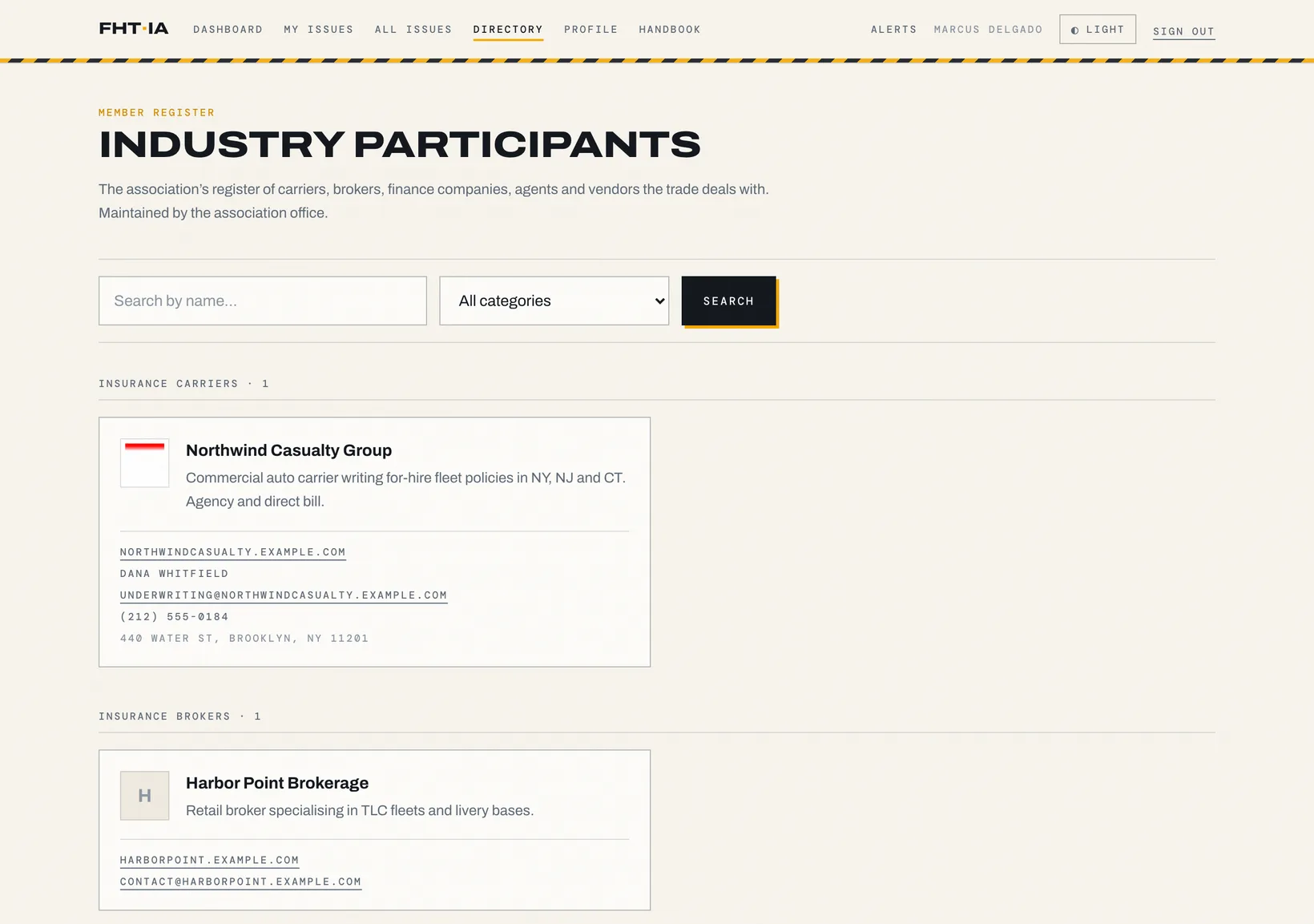
It is maintained by the association office. If an entry is wrong or a company is missing, tell the office rather than working around it.
7 · Confidential ratings
Members rate participants across ten dimensions — professionalism, communication, knowledge, responsiveness, fairness, problem resolution, claims handling, underwriting experience, customer service and overall satisfaction — on a scale of one to five, with optional comments.
This module is being finalised and will appear on your dashboard when it opens.
8 · Your account
- Editing your details
- Your name, company, position and mobile number can be changed from your profile. Your email address is your sign-in identity and is changed by the office.
- Notifications
- You are notified when your application is decided, when your issue changes status, and when someone replies in a discussion you are part of.
- Theme
- The light and dark switch is in the header; your choice is remembered on that device.
- Signing out
- Use Sign out in the header. On a shared computer, always sign out.